DJI Mic 3 for Zoom, Teams and Google Meet
A wireless lav is great for calls: your voice stays clear while you move. Set it up once in your call app and on the mic, and it just works in every meeting.
Before the call
- Plug the receiver into the computer over USB-C. The computer sees it as a USB microphone called Wireless Microphone RX.
- Set the receiver to Mono. Call apps usually use a single channel: in Stereo, the second transmitter, or your voice in one ear, can go missing. More in mono, stereo or 4CH.
- Wear headphones on the computer if you can, so the other people’s voices don’t leak back into your mic.
If the computer doesn’t see the receiver, start with how to connect it.
Zoom
- Choose the mic: your profile picture → Settings → Audio → Microphone, and pick Wireless Microphone RX.
- Automatic volume: Zoom has Automatically adjust microphone volume. While it’s on, Zoom moves the level itself and the input slider is unavailable. If you’ve set the gain on the mic, turn it off.
- Noise: Zoom’s default microphone mode is Noise removal, with a Background noise suppression level (Auto, Low, Medium, High). If the mic’s own noise cancelling is on, keep Zoom’s at Low or Auto so the two don’t stack.
- Music or room sound: Zoom’s Original sound for musicians turns off most of its processing.
Microsoft Teams
- Choose the mic: Settings and more → Settings → Devices, then the Microphone drop-down under Audio settings. In a meeting: the arrow next to Mic → More audio settings.
- Automatic volume: Teams has Automatically adjust mic sensitivity. Turn it off if you set the gain on the mic.
- Noise: Teams’ Noise suppression is on by default. Microsoft itself suggests turning it off for high-quality microphones in quiet rooms.
Google Meet
- Choose the mic: before joining, use the microphone drop-down on the preview. In a meeting, the arrow next to the microphone button, or More options → Settings → Audio.
- Noise: Noise cancellation is in the same Audio settings, on accounts that have it. Google recommends turning it off if you need other sounds in the meeting, such as music.
The mic’s settings or the app’s?
Call apps process your voice too. Stacking everything at full strength can make you sound robotic. A simple split:
- Background noise: use one noise reducer. Either the mic’s noise cancelling (Basic is usually enough) with the app’s on low, or the app’s with the mic’s off.
- Volume: set it once, on the mic, with the gain, and turn off the app’s automatic adjustment.
- Low cut on the mic is always safe for speech: it removes rumble before it reaches the app.
Muting
There are two different mutes:
- The app’s mute (Zoom, Teams, Meet): everyone sees you’re muted.
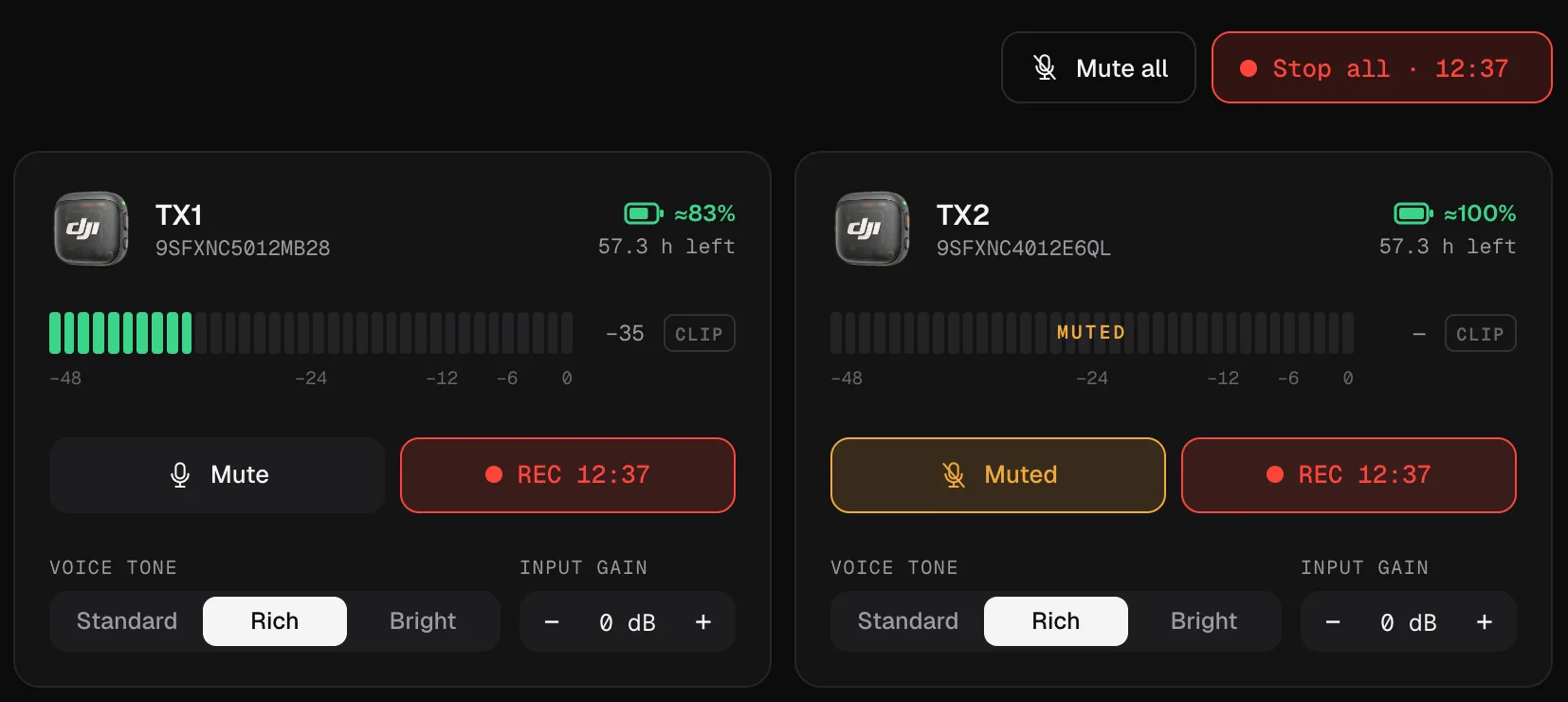
- The mic’s mute, from Mic Control’s Mute button: the transmitter goes silent at the source. The call app doesn’t know, so it still shows you as unmuted, but nobody hears you.
The app’s mute is the polite one in meetings. The mic’s mute is handy when two people share a computer and one needs to cough, or to silence a guest on a stream without touching the call.
Two people on one computer
Give each person a transmitter and keep the receiver in Mono: both voices go into the single channel the call app uses. Watch both levels side by side in Mic Control and balance them with each transmitter’s input gain.
Long meetings
The transmitters run on their own batteries. Mic Control shows each one’s battery and warns from the menu bar or tray when one gets low, so a two-hour meeting doesn’t end in silence. If you also want a recording of what you said, Record all starts the transmitters’ internal recording without touching the call.
Get the mic ready for calls
- 01
Set the receiver to Mono
In Mic Control, Channels on the receiver card. Call apps use one channel.
- 02
Pick it in your call app
“Wireless Microphone RX” as the microphone in Zoom, Teams or Meet.
- 03
Set the level once
Talk normally and adjust the input gain; turn off the app's automatic volume.
What you'll be able to do
- Switch the receiver to Mono in one click.
- Mute a transmitter at the source, or every transmitter at once.
- See both people's levels when two share a computer.
FAQ
Why does Zoom still use my laptop's mic?
Zoom keeps its own microphone setting. Choose Wireless Microphone RX in Settings → Audio → Microphone.
Why can only one person be heard?
The receiver is probably in Stereo and the call app uses one channel. Switch to Mono. More in mono, stereo or 4CH.
Should I use the mic's noise cancelling or the app's?
One of them. Stacking both at full strength can make your voice sound robotic. More in noise cancelling.
If I mute in Mic Control, does Zoom know?
No. The transmitter goes silent at the source, but the call app still shows you as unmuted. Use the app's mute in meetings.