DJI Mic 3 for podcasting: two voices, zero scares
Two people, two transmitters, one receiver on the computer. Here's how to get it ready in a minute, with a safety net.
The setup
- One receiver plugged into the computer over USB-C, recording into your usual app (Audacity, GarageBand, Reaper, Riverside in the browser…).
- One transmitter per person. TX1 for one voice, TX2 for the other. Write down who wears which.
- Headphones plugged into the receiver, to hear what the mic is really picking up.
- Mic Control next to your recording app, to see both levels at once.
If the computer doesn’t see the receiver yet, start with how to connect it.
What the Podcast scene does
One click in Mic Control sets the whole mic up for a sit-down conversation. Only what differs is sent:
| Setting | Podcast scene | Why |
|---|---|---|
| Channels | Stereo | Each voice on its own side, to split in the edit |
| Lossless | On | Uncompressed audio from the transmitters to the receiver; range doesn’t matter at a table |
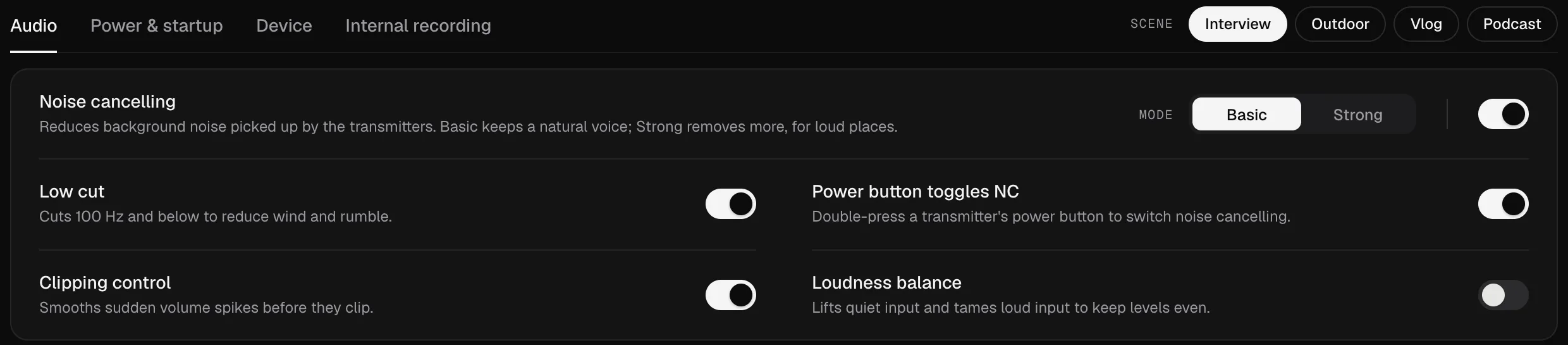
| Noise cancelling | Off | In a quiet room it takes more than it gives; clean up in the edit if needed |
| Low cut | Off | Keeps the low end of the voices |
| Voice tone | Rich | Fuller lows for spoken voice |
| Clipping control | On | Smooths a sudden laugh |
| Loudness balance | Off | So the gain is yours, not automatic |
| 32-bit float | On | A backup with headroom inside each transmitter |
Every setting is explained in every DJI Mic 3 setting.
Before you hit record
- Clip the transmitters on the chest, a hand’s width below the chin, pointing at the mouth. Keep them away from necklaces, zips and hair.
- Do a level check: each person talks as loud as they will in the conversation, and laughs once. Set each transmitter’s input gain so the peaks reach the orange in Mic Control, never the red. More in setting the gain.
- Start the backup: Record all starts internal recording on every transmitter at once, with a timer. When you connect a Mic 3 receiver, Mic Control sets the transmitters’ clock, so the internal files come out with the right time.
- Start recording in your app.
Two voices, two tracks
In Stereo, the file your app records has TX1 on the left channel and TX2 on the right. In the edit, split it into two mono tracks (in Audacity, for example, with Split Stereo to Mono) and you can level, clean and cut each voice on its own. The details for each editor are in mono, stereo or 4CH.
The safety net: 32-bit float inside the transmitters
The computer’s recording is your main track. The copy inside each transmitter is the backup:
- If the computer fails (an app crash, a cable pulled out), each voice is still on its transmitter.
- If a moment clips, the internal copy in 32-bit float keeps the headroom to bring it back down in the edit. The computer’s copy can’t be repaired.
According to DJI, a Mic 3 transmitter holds about 57 hours of single-file recording, or 43 hours in 32-bit float. Mic Control shows the hours left on each one. All of this is in 32-bit float on the DJI Mic 3.
Three or four people
The Mic 3 receiver supports up to four transmitters (Mic Control has been tested with two). With more than two people:
- 4CH gives each transmitter its own channel, if your recording app accepts a four-channel input.
- If it doesn’t, record in Mono for the main track and rely on each transmitter’s internal recording to edit the voices separately.
During the recording
Keep Mic Control open next to your recording app. If a guest gets louder as they relax, lower their input gain without stopping. If someone needs to cough, Mute on their card silences just their transmitter. And if a level turns red, you see it then, not in the edit.
Ready in a minute
- 01
Apply the Podcast scene
One click: stereo, lossless audio and a 32-bit float internal backup. The scene also turns noise cancelling and low cut off.
- 02
Split the voices
In Stereo, TX1 goes to the left channel and TX2 to the right. In the edit, each voice is its own track.
- 03
Record inside the mics too
Hit Record all: the transmitters keep their own copy. If something fails on the computer, you still have it.
What you'll be able to do
- Apply the Podcast scene in one click.
- See both voices' levels side by side and set each one's gain.
- Start the transmitters' internal backup for everyone at once.
FAQ
What if there are three or four of us?
The Mic 3 supports up to four transmitters (tested with two). In 4CH each gets its own track, if your software supports it.
What gain should I use?
Start at 0 dB and talk like you will in the recording. If the meter hits red, lower that transmitter's input gain. More in setting the gain.
Do the internal copies have the right time?
Yes. When you connect a Mic 3 receiver, Mic Control sets the transmitters' clock.