DJI Mic 3 noise cancelling: Basic or Strong?
Noise cancelling cleans up the background, but it isn't free: the more it removes, the less natural your voice sounds. Here's when to use each level and when to turn it off.
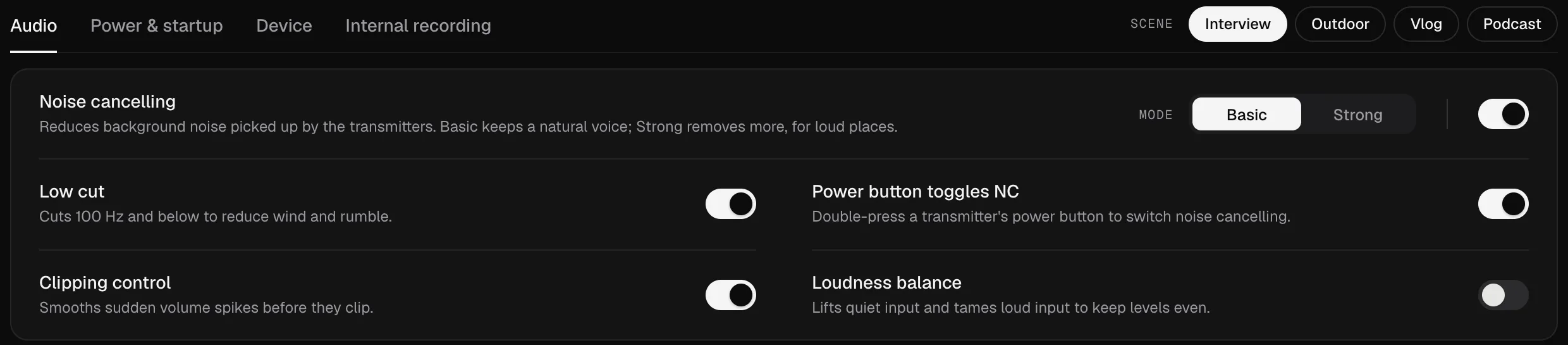
What it does
Noise cancelling reduces the background noise the transmitters pick up: a computer fan, air conditioning, traffic, the murmur of a room. On the Mic 3 it’s two settings, not one:
- On or off.
- The level: Basic or Strong. The level only matters while it’s on.
That’s why it sometimes seems to “do nothing”: you changed the level, but noise cancelling itself was still off.
Basic or Strong
| Basic | Strong | |
|---|---|---|
| How much it removes | Less | More |
| How your voice sounds | More natural | More processed |
| Where it fits | Home office, a classroom, quiet indoor rooms | Streets, events, crowds, wind |
DJI sums it up the same way: the lower level for quiet indoor spaces, the higher one to keep your voice clear in noisy environments. Our advice: start with Basic, and only go to Strong if you can still hear the background in headphones.
When to turn it off
Noise cancelling is processing, and processing always takes something with it. Leave it off when:
- You record in a quiet or treated room: there’s little to remove and your voice stays more natural.
- You’ll clean up in the edit, with better tools and room to undo. Many podcasters work this way, and Mic Control’s Podcast scene turns it off.
- The background matters: music, room sound, ambience you want to keep.
Four ways to switch it on
- On the receiver, from its touchscreen menu.
- From the transmitter, with a double press of the power button, if the Power button toggles NC option is on.
- In DJI Mimo, on your phone.
- From the computer, in Mic Control: Audio tab → Noise cancelling, then Mode. It’s also in the menu bar (Mac) or tray (Windows, Linux) menu, so you can switch it without opening the window.
On the DJI Mic Series Mobile Receiver it works differently: noise cancelling is set with the switch on the receiver. Mic Control shows its state but can’t change it.
Combine it with low cut
Noise cancelling and low cut do different jobs. Low cut removes the very lowest frequencies, where wind, handling noise and the hum of traffic or air conditioning live. Noise cancelling goes after the rest of the background. Outdoors, it makes sense to use both; Mic Control’s Outdoor scene sets noise cancelling to Strong with low cut on.
Not working as you expect?
- Check it’s on, not just the level.
- Listen in headphones plugged into the receiver, not through the computer, so you hear what the mic is sending.
- A voice right next to you isn’t “noise”. The feature is designed for background noise; another person talking nearby is much harder to remove. Move the transmitter closer to the mouth instead.
- If the voice sounds robotic or underwater, go from Strong back to Basic, or off.
And the internal recordings?
According to DJI, the Mic 3 transmitters can keep two kinds of file: the Original file, with the raw audio, and the Edited file, with noise cancelling, low cut and voice tone applied. That gives you a way back if the processing was too much. The other settings, from voice tone to 32-bit float, are explained in every DJI Mic 3 setting.
Turn it on from your computer
- 01
Open the Audio tab
In Mic Control, with the receiver plugged in over USB-C.
- 02
Turn on Noise cancelling
The Mode selector unlocks once it's on.
- 03
Pick Basic or Strong
Basic for most rooms. Strong for traffic, wind or crowds. Listen in headphones before you record.
What you'll be able to do
- Turn noise cancelling on or off and pick Basic or Strong.
- Combine it with low cut and see the effect on the meters.
- Change it from the menu bar or tray without opening the window.
FAQ
Is noise cancelling applied to the internal recordings?
DJI describes two kinds of internal file: the Original file, with the raw audio, and the Edited file, with noise cancellation, low cut and voice tone applied.
Why doesn't it seem to do anything?
Check it's actually on, not just the mode: they're two separate settings. And it's designed for background noise; a voice right next to you is much harder to remove.
Can I switch it from the transmitter?
Yes, if “Power button toggles NC” is on. On the Mic 3 it's a double press of the transmitter's power button.
And on the Mobile Receiver?
Use the noise cancellation switch on the receiver. Mic Control shows its state but can't change it.
Should I use it for a podcast?
In a quiet room, many people leave it off and clean up in the edit. Mic Control's Podcast scene turns it off.