DJI Mic 3 on Windows: control it from your PC
Mic Control runs on Windows with one extra step: switching a driver with Zadig, just once. Here's how.
Preview: the Windows installer hasn't been tested with a receiver plugged in yet. If something breaks, let us know on GitHub.
Before you start
- Windows 10 or 11, 64-bit (x64). There’s an installer and a portable
.exethat runs without installing. - A DJI Mic 3 or Mic Mini receiver and the USB-C cable that came with it.
- About ten minutes, once: Windows needs a one-time driver change, explained below.
This is a preview. The Windows build is made automatically from the same code as the Mac version, which is tested with a DJI Mic 3, but it hasn’t been tested on Windows with a receiver plugged in yet. If something fails, tell us on GitHub: it’s the quickest way to get it fixed.
Step 1: install Mic Control
Run the installer. The installer isn’t signed with a certificate Microsoft trusts yet, so SmartScreen may show “Windows protected your PC”: click More info and then Run anyway. The source code is public on GitHub if you’d rather check it or build it yourself.
Step 2: why Windows needs Zadig
The receiver shows up on the computer as several USB interfaces. One is the audio: Windows uses it as a normal USB microphone, “Wireless Microphone RX”, and that keeps working whatever you do here. Another is a control interface, the one that carries the settings. Windows binds a driver of its own to that one, and while it’s there no app can talk to it.
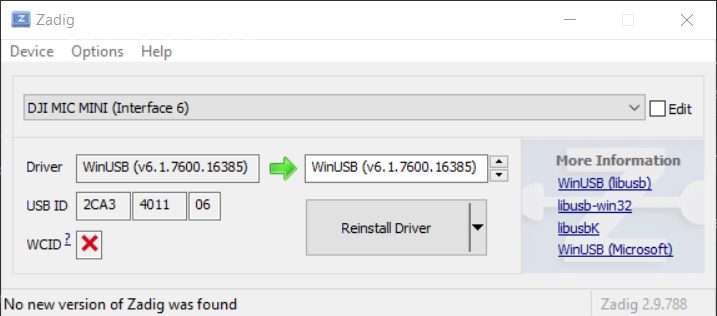
Zadig is a small, widely used tool that changes the driver of one USB interface. You switch the control interface, and only that one, to WinUSB:
- DJI Mic 3: interface 4 (
com.dji.mic). - Mic Mini: interface 6.
Step 3: switch the driver
- Download Zadig from its official site, zadig.akeo.ie, and plug in the receiver.
- In Zadig, open Options → List All Devices.
- In the drop-down, pick the DJI receiver’s entry for the right interface: Interface 4 on the Mic 3, Interface 6 on the Mic Mini. Check the number twice.
- Choose WinUSB as the target driver and click the button to replace the driver.
- Unplug the receiver, plug it back in and open Mic Control.
You only do this once per receiver and computer.
If the sound disappears
If the receiver stops working as a microphone after Zadig, the driver was changed on the wrong interface. Open Device Manager, find the receiver’s interface that’s now using WinUSB, uninstall that device (removing its driver) and plug the receiver back in so Windows reinstalls its own driver. Then repeat step 3 on the right interface.
Using it
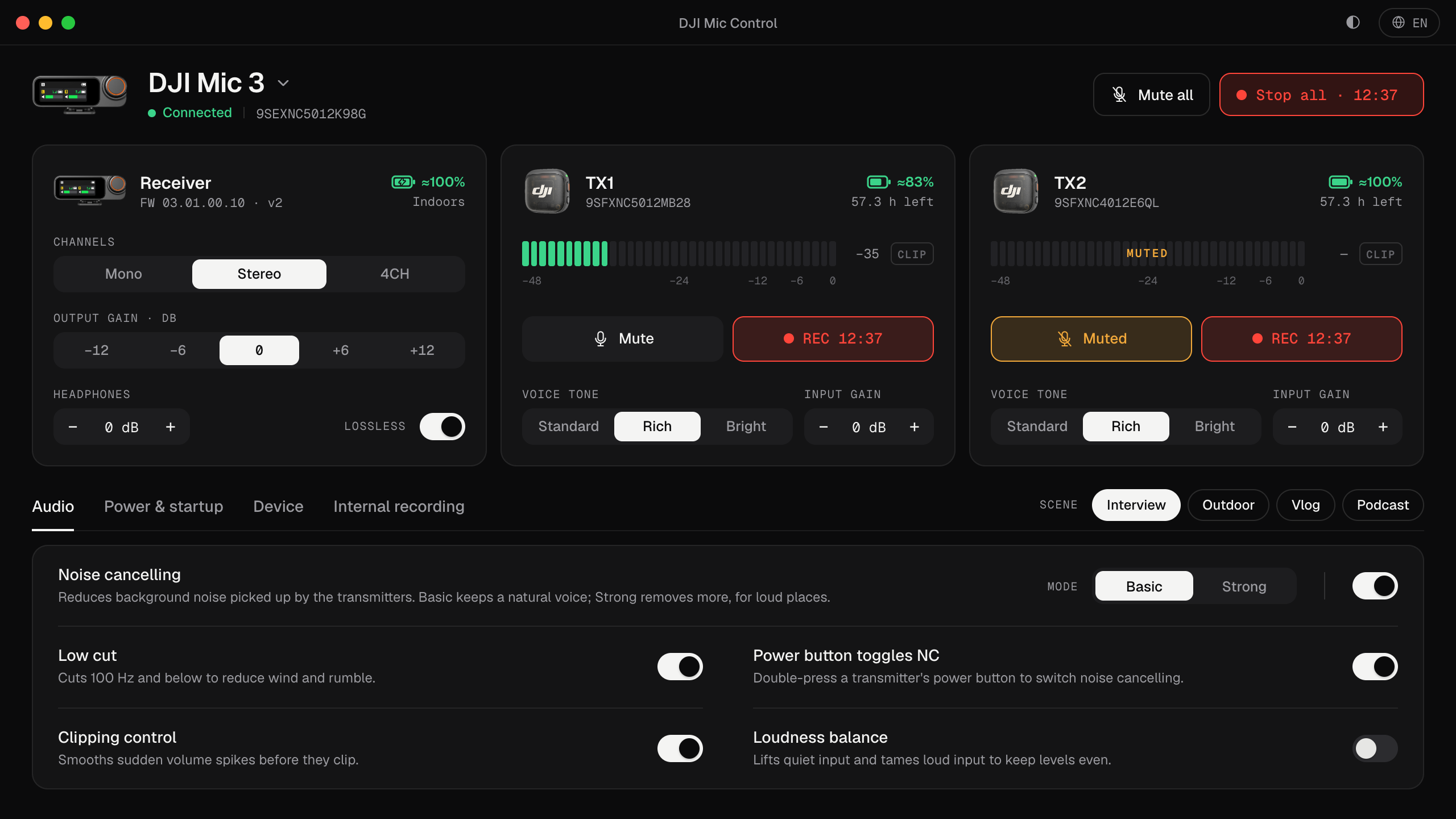
Once Mic Control finds the receiver you get the same app as on the Mac: live levels for each transmitter, gain, noise cancelling, channel mode, scenes, and mute or record on every transmitter at once. It also sits in the system tray, with shortcuts for the LEDs and noise cancelling and a warning when a transmitter’s battery runs low.
To record, pick Wireless Microphone RX as the microphone in Windows (Settings → System → Sound) and in your app. In Zoom, Teams or OBS, choose it inside the app as well. Everything is in how to connect the DJI Mic 3 to a computer.
Common questions about Windows
- Is Zadig safe? It’s a long-standing open-source tool for exactly this job. It only changes the driver of the interface you select.
- Does Mic Control change the audio? No. It only uses the control interface; the sound goes from the receiver to Windows as before.
- Can I go back? Yes: uninstall the WinUSB device in Device Manager and replug, as described above. The mic itself isn’t changed.
The short version: three steps
- 01
Install the app
Download the installer and run it. It isn't signed yet, so Windows may show a warning: click “More info” and then “Run anyway”.
- 02
Switch the driver with Zadig
Windows binds its own driver to the receiver's control interface. In Zadig, switch it to WinUSB: interface 4 (com.dji.mic) on the Mic 3, interface 6 on the Mic Mini.
- 03
Replug and open
Unplug the receiver, plug it back in and open Mic Control.
What you'll be able to do
- See each transmitter's levels live, with a clip warning.
- Change input gain, output gain and headphone volume.
- Turn on noise cancelling, low cut and clipping control.
- Mute or record on every transmitter in one click.
- Apply scenes: Interview, Outdoor, Vlog and Podcast.
- See battery and recording time left.
FAQ
Why does Windows warn me when I install it?
The installer isn't signed with a Microsoft-trusted certificate yet, so SmartScreen doesn't recognise it. Click “More info” and “Run anyway”. The source code is public on GitHub.
Does Zadig affect the mic's audio?
Only the control interface changes, not the audio one. The receiver still works as a USB microphone.
Does it work with the Mic Mini?
Yes. With the Mic Mini receiver, use interface 6 in Zadig (interface 4 is the Mic 3's).