How to transfer DJI Mic 3 recordings to a Mac or PC
The transmitters record on their own. Getting the files out is simple once you know the two ways to connect them, how the files are named and how to keep the dates right.
Two ways to connect, no app needed
According to DJI, there are two wired ways to get the internal recordings off DJI Mic 3 transmitters:
- Through the charging case. Put the transmitters in the case and connect the case to the computer with the included data cable. The case’s USB-C port is for charging and for copying internal recordings. This is the easy way to offload both transmitters at once.
- Straight from a transmitter, with the DJI Mic 3 transmitter magnetic charging cable.
Once connected, the recordings can be copied (exported) or deleted from the computer like files on a drive. DJI Mimo also has a File Download option if you’d rather use your phone.
Use a cable that carries data: a charge-only cable won’t show anything.
What you’ll find
DJI describes the same layout for the Mic 3 and the Mic Mini 2S:
- Format: WAV, both for 24-bit and 32-bit float recordings.
- Length: a new file every 30 minutes of recording.
- Folders: named like
TX_MIC001_20250530_115001, with a new folder every 50 files. - Files: named like
TX01_MIC002_20250527_202904_orig.wav.TX01is the transmitter’s pairing order. It’sTX00for a transmitter used alone or connected to a phone, and it changes if you pair again.- The date and time are in the name:
20250527_202904is 27 May 2025 at 20:29:04. _origis the original, raw file._editis the edited file, with voice tone, low cut, noise cancelling and adaptive gain applied.
The Mic 3 can record both versions at the same time (Transmitter Settings → File Format, in DJI’s terms). The Mic Mini 2S records one or the other, the edited file by default.
Why the date might be wrong, and how to fix it
The file names and dates come from the transmitter’s clock. According to DJI, the clock is synchronised with the receiver when a transmitter is connected to one, and a transmitter used alone can sync its time with your phone through DJI Mimo. The receiver itself asks for the date and time the first time you use it.
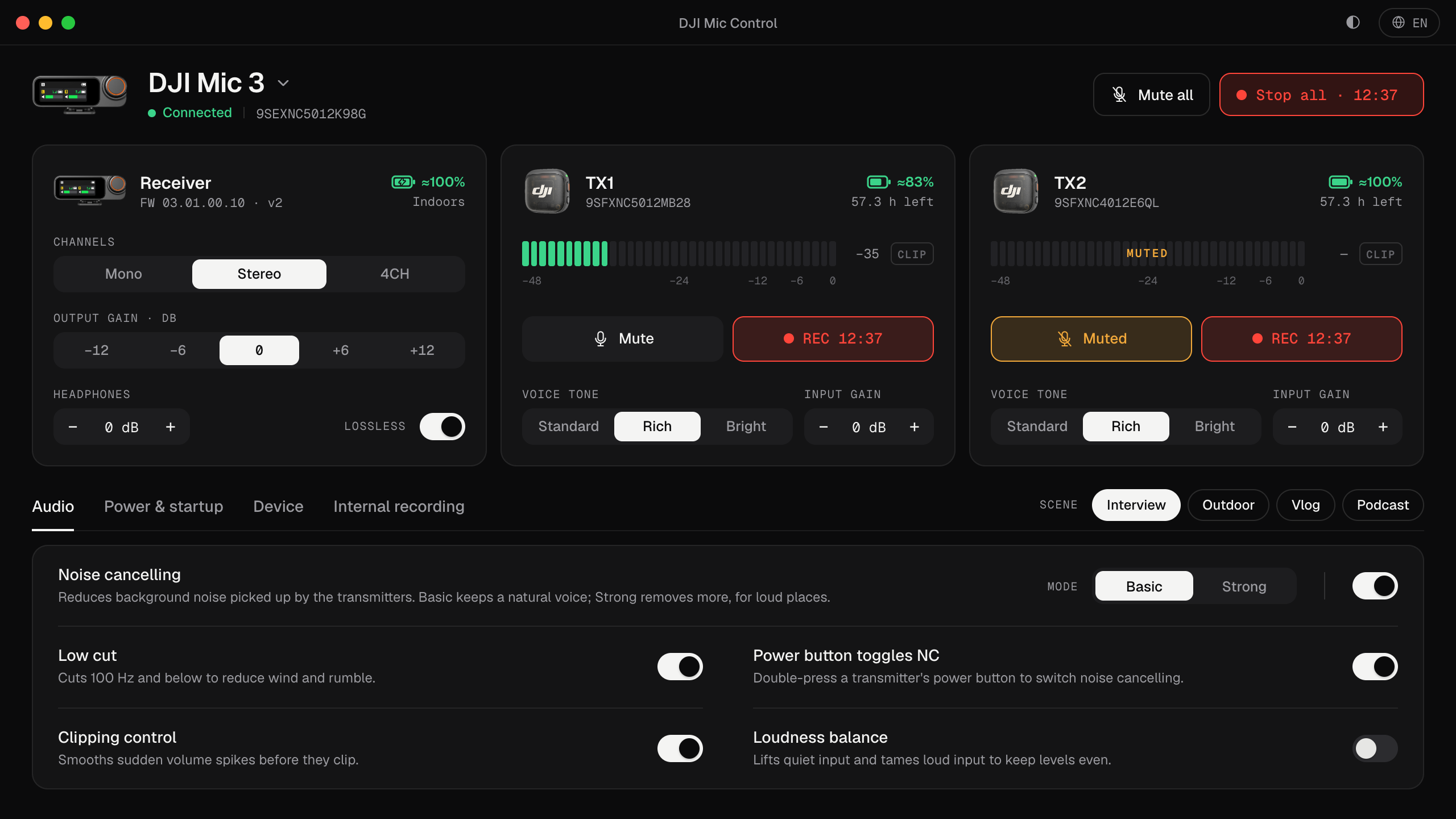
When you connect a Mic 3 receiver to a computer, Mic Control sets the transmitters’ clock to the computer’s. That way the internal files come out with the right date and time, which makes it much easier to line them up with the computer’s or the camera’s recording.
Mac or PC: anything special?
- Mac: DJI’s firmware V02.00.08.10 (December 2025) improved stability when copying files to Mac computers. If copying fails, make sure the firmware is up to date: see updating the firmware.
- Don’t format from the computer. For the Mini 2S, DJI warns that formatting a transmitter on a computer may cause internal recording malfunctions. Format in DJI Mimo instead.
Mic Mini 2S and other models
- Mic Mini 2S: the same two ways, with the Mic Mini 2 magnetic cable. Only the charging case of the 2-transmitter kit can export recordings; the small case of the Mobile Receiver kit can’t. If you turned on password protection, unlock it temporarily in DJI Mimo first. DJI quotes transfer speeds of up to 34 MB/s.
- Mic Mini 2: has no internal storage, so there’s nothing to copy.
Using the files in your edit
- Copy the folders to your computer and keep the original names: they tell you which transmitter and when.
- Put the internal file under the computer’s recording and line them up. With the clock synchronised, the start times in the names are already close.
- Use the original file if you want to process the voice yourself, the edited one if you liked how it sounded live.
- If you recorded in 32-bit float, a moment that clipped on the computer can be recovered from the internal file: see 32-bit float on the DJI Mic 3.
Mic Control starts and stops the internal recording on every transmitter at once and shows the time left on each one, but it doesn’t download the files: copying them is done as described above.
Record so the files are easy to find
- 01
Connect the receiver to Mic Control
It sets the transmitters' clock to the computer's, so the files get the right time.
- 02
Start Record all
Internal recording on every transmitter at once, with a timer and the time left.
- 03
Copy the files afterwards
Through the charging case or the transmitter's cable, as explained above.
What you'll be able to do
- Start and stop internal recording on every transmitter at once.
- Set the transmitters' clock automatically when you connect.
- See the recording time left on each transmitter.
FAQ
Do I need an app to copy the files?
No. Connect the charging case (with the transmitters inside) or a transmitter to the computer with a data cable and copy the files. DJI Mimo also offers File Download.
What format are the files?
WAV, according to DJI, both in 24-bit and 32-bit float, with a new file every 30 minutes.
Why is the date wrong?
The transmitter's clock syncs with the receiver it's connected to. Mic Control sets it to the computer's time when you connect a Mic 3 receiver.
Can Mic Control download the files?
No. It starts and stops recording; the files are copied over the cable or with DJI Mimo.