How to stop the DJI Mic 3 from clipping
Clipping doesn't get fixed in the edit. It gets avoided before. Like this.
What clipping is, and why it can’t be fixed later
Every digital recording has a ceiling. When the signal tries to go above it, the top of the waveform is cut flat: that’s clipping. You hear it as a harsh crackle on laughs, shouts or plosives. The part that was cut is gone, so no editor can bring it back; at best it can make it less obvious.
That’s why clipping is avoided before recording, not fixed after.
Where it happens with the DJI Mic 3
The sound passes through several stages, and it can clip at more than one:
- The transmitter, if its input gain is too high for the voice.
- The receiver, if its output gain pushes the mix too hot.
- The computer, if the system’s input volume or your app’s gain adds even more.
The internal recording inside each transmitter is a separate path: in 32-bit float it keeps far more headroom than the USB audio.
How to see it coming
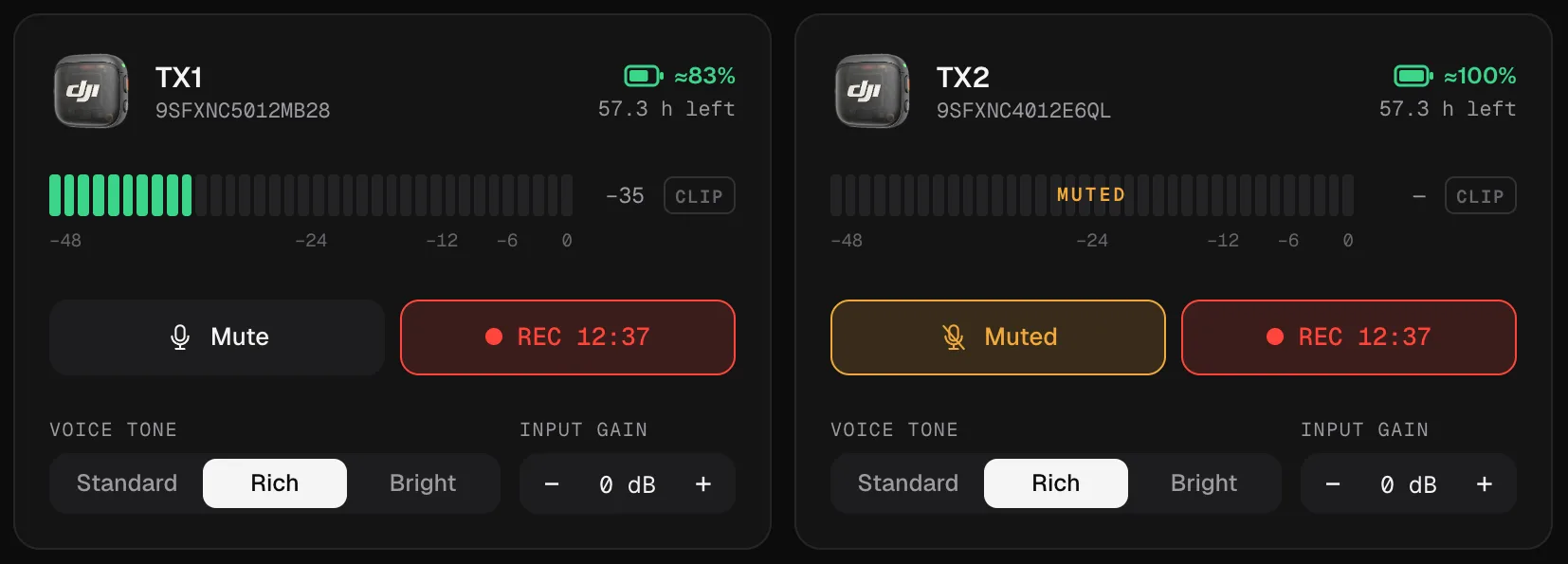
In Mic Control, each transmitter has a meter from −48 to 0 dB:
- Green, below −12 dB.
- Orange, from −12 to −6 dB: fine for peaks.
- Red, above −6 dB: too close to the limit.
- CLIP lights up when the signal hits the maximum, and stays lit for a moment so you notice even if you looked away.
The dB values are approximate. Use them as a guide: normal speech in the green, the loudest moments reaching the orange.
How to fix it, in order
- Rehearse the loudest moment. Ask the person to laugh or say something emphatic, as they will in the take.
- One person clipping: lower that transmitter’s input gain, a few dB at a time (−12 to +12 dB, in 1 dB steps).
- Everyone clipping: lower the receiver’s output gain first (−12, −6, 0, +6, +12 dB).
- Check the computer side: if the meters in Mic Control look fine but your app shows red, lower the input level in the system or in the app.
- Move the mic a little further away from the mouth if the voice is very loud.
The order and the reasons behind it are in setting the gain.
The safety nets
Clipping control. On the Mic 3 this is DJI’s adaptive gain in Automatic mode: it smooths sudden swings in volume and suppresses spikes. It’s useful for unpredictable situations: sport, events, people who suddenly laugh. Its sibling, loudness balance (DJI’s Dynamic mode), evens out quiet and loud input instead. DJI notes that while adaptive gain control is on, the receiver’s gain can’t be adjusted; turn it off if you want full manual control. On the Mic Mini, clipping control is a different thing: a limiter on the receiver’s output.
32-bit float internal recording. Each Mic 3 transmitter can record internally in 32-bit float, which keeps the peaks that would clip a normal recording, so you can bring the level down in the edit. Turn it on in Mic Control’s Internal recording tab and start it with Record all.
Safety Track (Mic Mini only). The Mic Mini can record a backup copy 6 dB quieter on the second channel, with the receiver in Mono. The Mic 3 doesn’t have it: its equivalent is the 32-bit float internal recording.
If you already recorded clipped audio
- If you also recorded in 32-bit float inside the transmitters, use that copy for the clipped parts: lower its level in your editor and the peaks come back intact.
- If you only have the computer’s recording, the clipped moments can be softened with a de-clipping tool in your editor, but not fully restored.
Next time, a minute of level check before recording, with the meters in view, avoids the problem.
The short version
- 01
Watch the meter
Talk like in the real take. If the meter hits red or CLIP lights up, you're too hot.
- 02
Lower the right gain
If everything distorts, lower the receiver's output gain first. If it's one voice, lower that transmitter's input gain.
- 03
Turn on the safety net
Turn on clipping control to smooth peaks. On the Mic 3, also record in 32-bit float inside the transmitters.
What you'll be able to do
- See each transmitter's level live, with a CLIP warning that stays lit.
- Lower input or output gain without touching the mic.
- Turn on clipping control and 32-bit float from the computer.
FAQ
What is the CLIP warning?
It lights up when the signal hits the maximum and stays on for a moment so you don't miss it.
Does clipping control change my voice?
It's meant to smooth out sudden volume spikes so they don't clip.
What if I already recorded clipped audio?
If you were also recording in 32-bit float inside the transmitters, that copy can usually be recovered in the edit. The computer's copy can't. More in 32-bit float.