DJI Mic 3 with OBS: clean audio, live
Live, there's no second take. With the receiver in OBS and Mic Control next to it, you see levels and change settings without stopping the stream.
Add the DJI Mic 3 to OBS
- Plug the receiver into the computer over USB-C. The computer sees it as a USB microphone called Wireless Microphone RX. If it doesn’t appear, start with how to connect it to a computer.
- In OBS, under Sources, click + and add an Audio Input Capture.
- As the device, pick the receiver. Don’t leave it on “Default” if your computer’s built-in mic could become the default.
- Talk and watch the source’s meter in OBS’s Audio Mixer.
If you already had the built-in mic or a webcam mic as a source, mute or remove it, or you’ll get a doubled, echoey voice.
Mono or stereo in OBS
With two transmitters, the receiver’s channel mode decides what OBS gets:
- Mono: both transmitters mixed into both channels. For a stream, it’s usually what you want: everyone is heard in both ears.
- Stereo: TX1 on the left, TX2 on the right. Each voice stays on one side, which sounds odd on a stream but is useful if you record and edit the voices separately afterwards.
With one transmitter and the receiver in Stereo, your voice only comes out of one side. Switch the receiver to Mono, or in OBS open Edit → Advanced Audio Properties and tick Mono for that source. There’s more on each mode in mono, stereo or 4CH.
Set the level before you go live
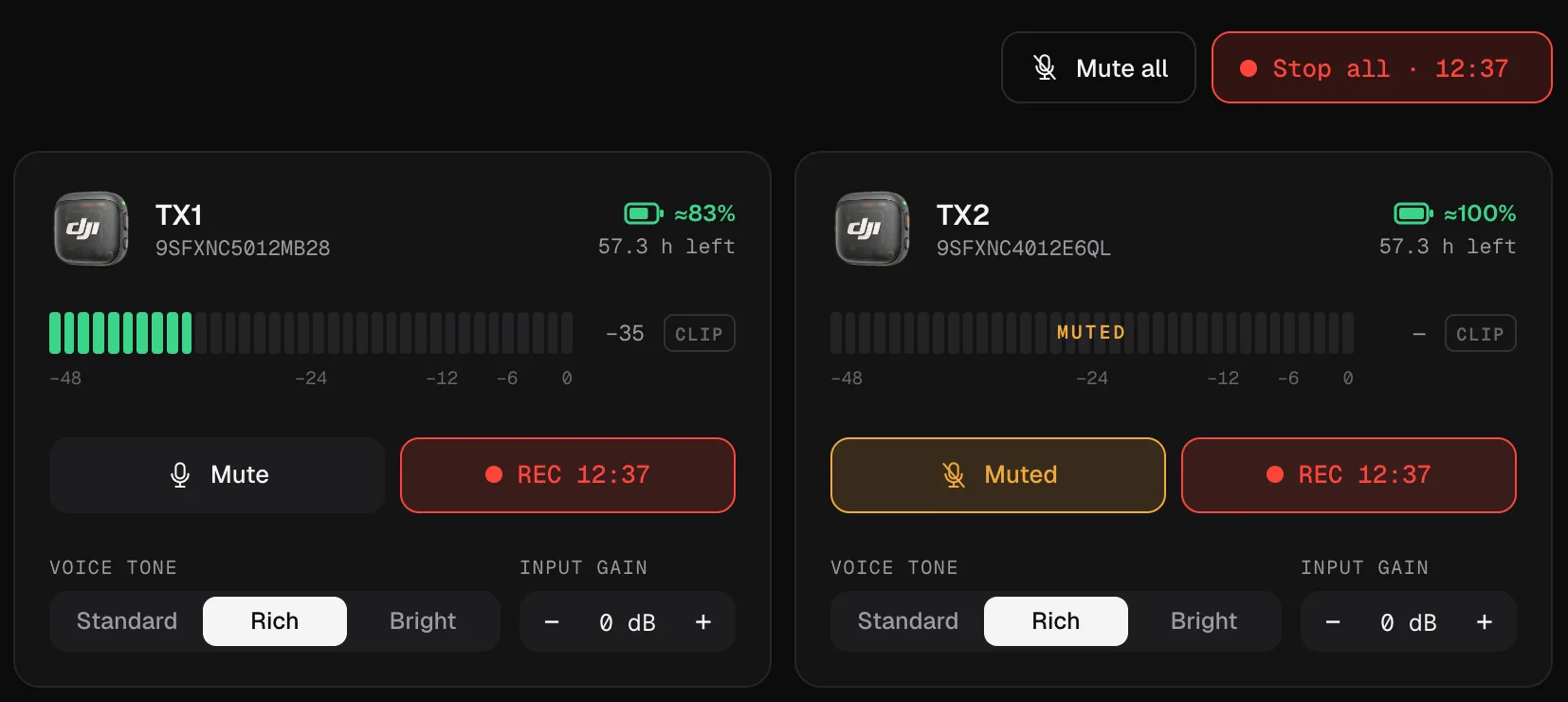
OBS’s mixer shows what OBS receives; Mic Control shows each transmitter separately, with a clip warning. Set the level at the source, on the mic, and leave OBS’s fader near 0 dB:
- Talk as loud as you will during the stream.
- In Mic Control, adjust each transmitter’s input gain so the peaks reach the orange and never the red.
- If everything is too quiet or too loud, change the receiver’s output gain.
If CLIP lights up, lower the gain: clipped audio can’t be fixed afterwards. The order and the reasons are in setting the gain.
Noise: the mic or OBS?
OBS has its own audio filters, including noise suppression. The DJI Mic 3 has noise cancelling built in. Using both at full strength can make your voice sound processed. A simple rule:
- If the room is quiet, leave both off, or use OBS’s filters only.
- If there’s background noise, use the mic’s noise cancelling (Basic first, Strong only if needed) and skip OBS’s noise suppression.
More in noise cancelling: Basic or Strong.
Control the mic live without leaving the stream
This is where Mic Control helps most: you change the mic’s settings from the computer, while OBS keeps the audio.
- Mute a guest with the Mute button on their card, or everyone with Mute all, without touching OBS or the transmitter.
- Watch the levels for each transmitter on a big screen, not the receiver’s tiny one.
- Switch noise cancelling from the menu bar or tray without opening the window.
- Start a backup recording inside the transmitters with Record all, so you have a clean copy if the stream’s audio fails.
Mic Control doesn’t add latency: it only changes settings, and the audio goes straight from the receiver to OBS.
Audio out of sync with the video?
If your voice arrives slightly before or after your lips move, it’s the video path, not the mic settings: webcams and capture cards often add delay. In OBS, open Edit → Advanced Audio Properties and add a Sync Offset to the mic source until it lines up.
Monitoring
To hear yourself, plug headphones into the receiver: there’s no delay there, and Mic Control sets their level. Monitoring through OBS adds some delay, which many people find distracting while they talk.
The quick setup
- 01
Plug the receiver in over USB-C
Your computer sees it as a USB microphone.
- 02
Add it in OBS
Under Sources, add “Audio Input Capture” and pick the receiver as the device.
- 03
Adjust in Mic Control
Raise or lower each transmitter's gain while watching the meters. If CLIP lights up, lower it. Turn on noise cancelling if there's background noise.
What you'll be able to do
- See each transmitter's level next to OBS, with a clip warning.
- Mute a guest, or everyone, without touching OBS.
- Switch noise cancelling from the menu bar or tray during the stream.
FAQ
One or two channels in OBS?
In Mono, both transmitters are mixed into both channels. In Stereo, TX1 goes left and TX2 right, in case you want to treat them separately. More in mono, stereo or 4CH.
Can I mute a guest live?
Yes. The Mute button on their card, or Mute all at the top. Without touching OBS.
Does it add audio latency?
No. Mic Control only changes settings; audio goes straight from the receiver to OBS.