DJI Mic 3 voice tone: Regular, Rich or Bright?
Three presets that shape your voice before it reaches the computer. Here's what each one does, which to pick, and how to change them per transmitter.
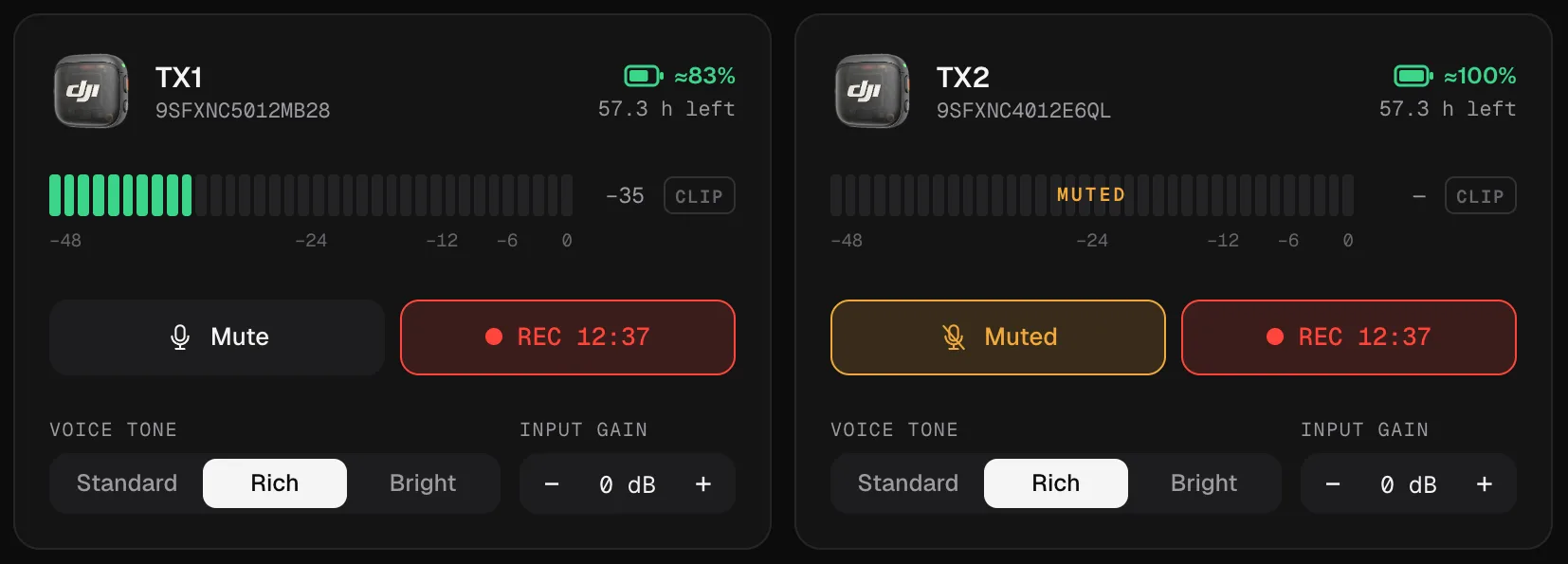
The three presets
The DJI Mic 3, Mic Mini 2 and Mic Mini 2S have three voice tone presets. DJI describes them like this:
| Preset | DJI’s description | In Mic Control |
|---|---|---|
| Regular | The default: clean, natural and balanced | Standard |
| Rich | Extra emphasis on the lows, for a fuller, more powerful sound | Rich |
| Bright | Highlights the highs, for extra clarity and sparkle | Bright |
Voice tone is set per transmitter: two people can have different presets.
Which one to choose
- Regular is the honest one. If you don’t know, leave it here, especially if you’ll process the voice in the edit.
- Rich helps thin or high voices sound fuller, and suits a sit-down conversation. Mic Control’s Interview and Podcast scenes use it.
- Bright helps when the voice sounds muffled: a transmitter under a jacket or a scarf, a voice that gets lost outdoors. Mic Control’s Outdoor scene uses it.
Test it like any other setting: say the same sentence with each preset, listening in headphones plugged into the receiver, and keep the one that sounds most like the person.
What it affects, and what it doesn’t
- The live signal: what the receiver sends to your computer, camera or phone carries the tone.
- Internal recordings: on the Mic 3, the transmitter can keep an original file, raw, and an edited file with voice tone, low cut and noise cancelling applied. Choose the original if you’d rather decide the sound in the edit. On the Mic Mini 2S, which records one file or the other, DJI notes that with the original file the tone doesn’t apply to the internal recording, only to the wireless signal.
More on those files in transferring the recordings.
How to change it
- On the Mic 3 receiver: DJI’s path is to tap the transmitter’s level bar on the receiver’s home screen, swipe left and tap the rightmost option.
- In DJI Mimo on your phone, for the Mic 3, Mini 2 and Mini 2S.
- From the computer, in Mic Control: each transmitter’s card has a Voice tone selector: Standard, Rich or Bright. The scenes change it on every transmitter at once.
With a transmitter connected straight to a phone by Bluetooth, DJI’s own pages don’t agree on whether voice tone is available, so check in DJI Mimo with your setup.
Voice tone, noise cancelling and low cut
These three shape the same voice, so they add up:
- Low cut removes the lowest frequencies. Combined with Rich, it keeps the fullness of the voice without the rumble.
- Noise cancelling at Strong can make a voice duller; Bright can compensate a little outdoors.
- For a natural result in a quiet room: Regular, low cut on, noise cancelling off or Basic.
All the settings are in every DJI Mic 3 setting, and noise cancelling has its own guide.
Change it from your computer
- 01
Open Mic Control
With the receiver plugged in over USB-C.
- 02
Pick a tone on each transmitter's card
Standard (DJI's Regular), Rich or Bright.
- 03
Listen in headphones
Plugged into the receiver, saying the same sentence with each one.
What you'll be able to do
- Pick a voice tone per transmitter.
- Apply a scene that sets the tone on every transmitter.
- Combine it with low cut and noise cancelling.
FAQ
Which is the default?
Regular, which Mic Control calls Standard.
Does voice tone change the internal recording?
It's applied to the live signal and the edited internal file; the original file is raw.
Can each person have a different tone?
Yes. Voice tone is set per transmitter.
Which tone for a podcast?
Rich is a good start for spoken voice; Mic Control's Podcast scene uses it.