DJI Mic 3 not recognized on your Mac: what to check
It's almost always one of these three things. Check them in order.
First: what exactly isn’t working?
“Not recognized” can mean three different things, and each has a different fix:
- The Mac doesn’t see the receiver at all. It’s not in System Information and there’s no new audio input. That’s the cable, the port or power.
- The Mac sees the mic, but your app doesn’t use it. The input exists, but Zoom, OBS or your editor is still on the built-in mic. That’s a setting in the app.
- The Mac sees the mic, but Mic Control doesn’t find it. The sound works; only the settings app can’t reach the receiver.
1. The Mac doesn’t see the receiver
Check whether macOS sees it. Hold the Option key, open the Apple menu and choose System Information, then USB. With the receiver connected and switched on, a DJI device should be listed. Also look in System Settings → Sound → Input for Wireless Microphone RX, the name DJI gives the receiver’s audio input.
If it’s in neither place:
- Swap the cable. Some USB-C cables only charge and carry no data. Use the one that came with the mic.
- Plug in directly. Skip hubs, docks, monitor ports and adapters while you test.
- Check the receiver is on, and not switched off by auto power-off: if that option is on, the receiver turns itself off after 15 minutes without a transmitter signal.
- Try another port on the Mac.
2. The Mac sees it, but your app doesn’t use it
Most apps keep their own microphone setting, separate from the system’s. Pick Wireless Microphone RX inside the app:
- Zoom: Settings → Audio → Microphone.
- OBS: the Audio Input Capture source → Device (OBS guide).
- QuickTime, GarageBand, Logic, Audacity: the input or microphone menu of each app.
If only one of two voices is heard, the receiver is probably in Stereo: see mono, stereo or 4CH. If it’s heard but very quietly, see setting the gain.
3. Mic Control doesn’t find the receiver
- Use the latest version. Since 1.4.0 the app is signed and notarized by Apple, and macOS opens it without blocking it. If you have 1.3.0 or older and macOS says the app is damaged, download the latest; or clear the quarantine flag once with the command in step 3 below.
- Check your Mac. The app is built for Apple Silicon (M1 or later).
- Close other tools that control the receiver, such as another control app or a browser tab using WebUSB: only one program can use its control interface at a time.
- Replug the receiver with Mic Control open.
- Check the model. The DJI Mic 3, Mic Mini, Mic Mini 2S and the Mobile Receiver are supported. The DJI Mic 2’s own receiver and the original DJI Mic (2021) aren’t: no USB control interface has been documented for them.
In 4CH mode
When the Mic 3 receiver switches to or from 4CH, it changes its USB identity: macOS sees the audio input disconnect and reconnect. Wait a few seconds and pick the input again in your app. Mic Control recognizes the receiver in both modes.
Firmware
Mic Control is tested on the Mic 3 with firmware 03.01.00.10. If you have a different version and something fails, tell us on GitHub with your firmware version. Firmware updates are done in DJI Mimo on your phone; Mic Control doesn’t touch the firmware.
Still stuck?
Open an issue on GitHub with your macOS version, Mac model, receiver model and firmware, and what System Information shows under USB. The general connection guide, for any system, is how to connect the DJI Mic 3 to a computer.
The three quick checks
- 01
Swap the cable
Some USB-C cables only charge and don't carry data. Try another one, ideally the one that came with the mic.
- 02
Connect directly
Skip hubs and adapters while testing. Plug the receiver straight into the Mac.
- 03
Use the latest version
Since 1.4.0 the app is signed and notarized by Apple, and macOS opens it without blocking it. If you have 1.3.0 or older and macOS says it's damaged, download the latest or clear the quarantine flag once:
sudo xattr -rd com.apple.quarantine "/Applications/DJI Mic Control.app"
What you'll be able to do
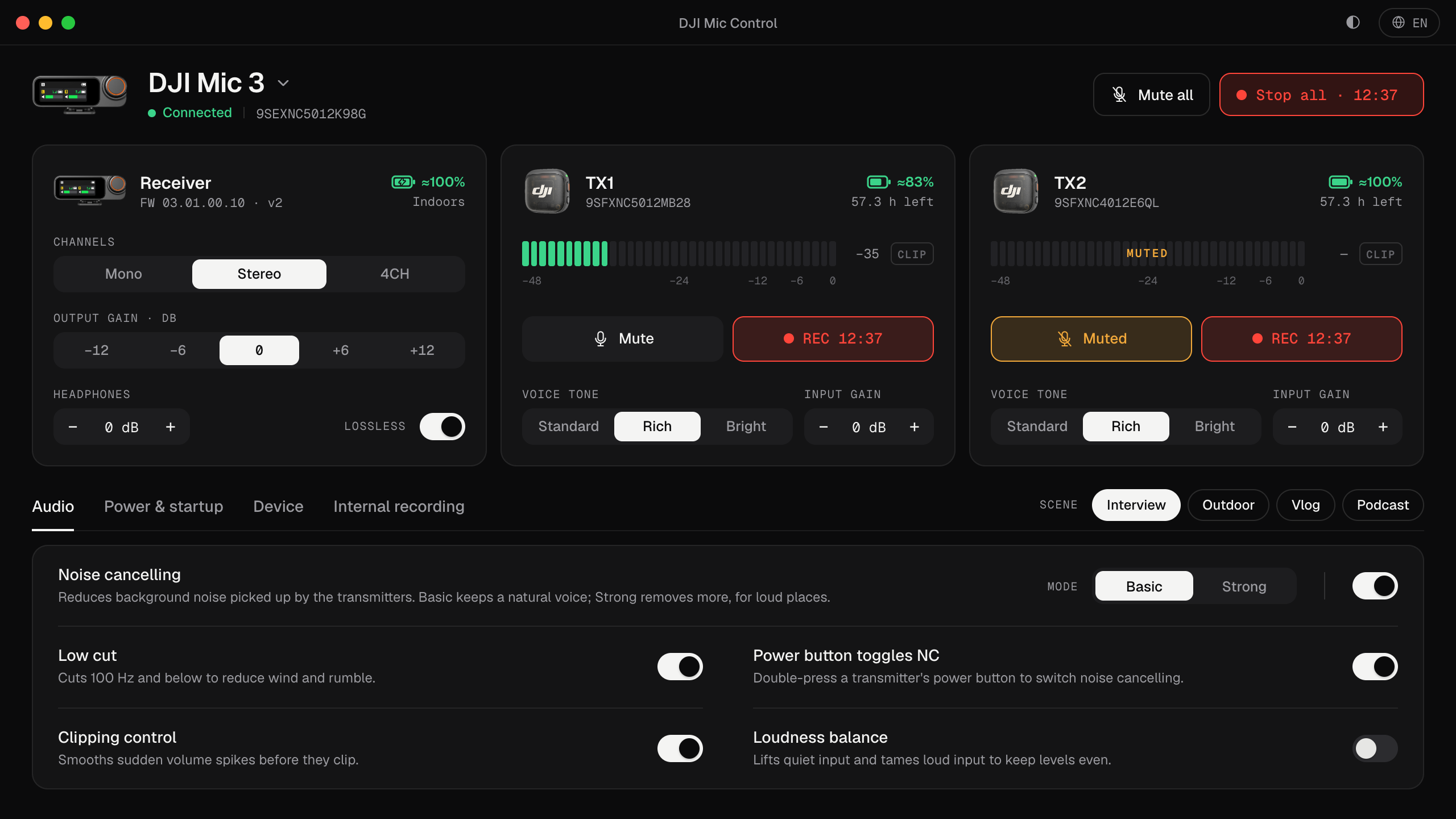
- See each transmitter's levels live, with a clip warning.
- Change input gain, output gain and headphone volume.
- Turn on noise cancelling, low cut and clipping control.
- Mute or record on every transmitter in one click.
- Apply scenes: Interview, Outdoor, Vlog and Podcast.
- See battery and recording time left.
FAQ
Does it work in 4CH mode?
Yes. In 4CH the receiver changes its USB ID and Mic Control still recognizes it. When you switch modes, USB audio disconnects and reconnects.
Do I need to update the firmware?
On the Mic 3, Mic Control is tested with firmware 03.01.00.10. If you have another version and something fails, update it with the official app.