DJI Mic 3 on Linux: control it from your desktop
On Linux, Mic Control installs as a .deb or .rpm package, or runs as an AppImage. USB access is granted once.
Preview: the Linux packages haven't been tested with a receiver plugged in yet. If something breaks, let us know on GitHub.
Before you start
- A 64-bit (x64) Linux desktop. There are three formats: a
.debpackage (Debian, Ubuntu, Mint, Pop!_OS…), an.rpmpackage (Fedora and friends) and an AppImage that runs on almost any distribution. - A DJI Mic 3 or Mic Mini receiver and the USB-C cable that came with it.
This is a preview. The Linux packages are built automatically from the same code as the Mac version, which is tested with a DJI Mic 3, but they haven’t been tested with a receiver plugged into a Linux machine yet. If something fails, tell us on GitHub, with your distribution and desktop.
Which format to pick
.debor.rpmif your distribution uses them: they install like any other package, add Mic Control to your app menu and install the USB permission rule for you.- AppImage if you’d rather not install anything system-wide, or your distribution isn’t Debian- or Fedora-based. You install the USB rule yourself, once.
The commands for each are in the steps below; copy them as they are.
Why Linux needs a udev rule
On Linux, a normal user can’t talk to a USB device unless a rule allows it. The receiver’s audio is the exception: it’s a standard USB microphone, and your sound system (PipeWire or PulseAudio) uses it straight away. Mic Control talks to a different interface, the receiver’s control interface, and that one needs permission.
The rule, 60-dji-mic.rules, grants that permission only for DJI receivers. It goes in /etc/udev/rules.d/, and udev has to reload its rules before the receiver is plugged in again. If you open Mic Control without the rule, the app tells you and shows the same steps.
After installing
- Unplug the receiver and plug it back in, so the new rule applies.
- Open Mic Control from your app menu, or run the AppImage (make it executable the first time).
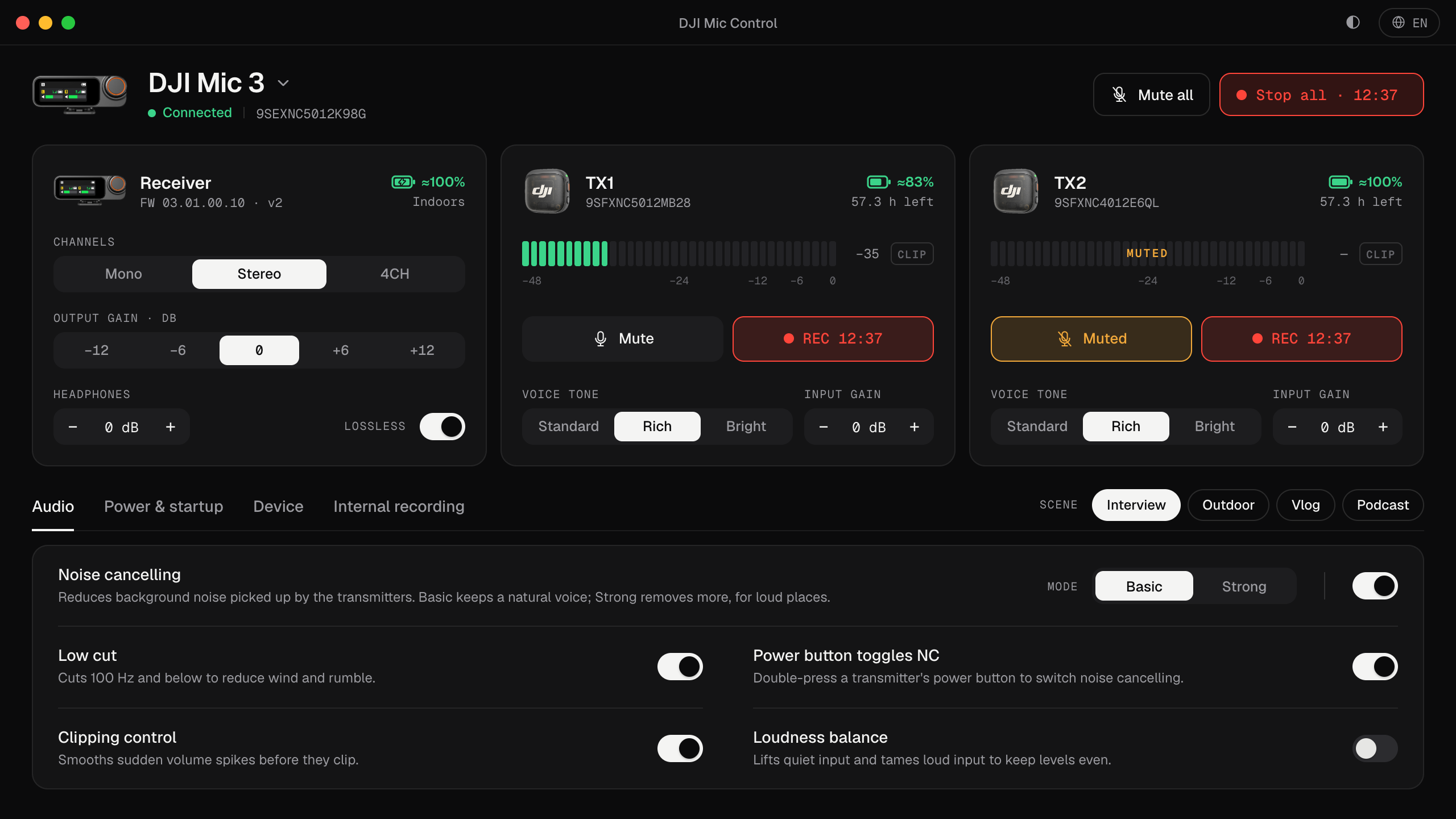
- The receiver appears with a card for each transmitter and live levels.
To record, pick the receiver as the input in your desktop’s sound settings and in your recording app. It shows up as Wireless Microphone RX or with a similar USB name. More in how to connect the DJI Mic 3 to a computer.
What you can do
The same as on the Mac: levels with a clip warning, input and output gain, noise cancelling and the rest of the settings (all explained in every DJI Mic 3 setting), scenes, and mute or record on every transmitter at once. Mic Control also adds a tray icon with shortcuts for the LEDs and noise cancelling, on desktops that show tray icons.
If it doesn’t find the receiver
- Check the rule is in place:
ls /etc/udev/rules.d/ | grep djishould list60-dji-mic.rules. - Replug after installing the rule. The permission applies when the device is connected.
- Check the system sees the receiver:
lsusbshould list a device from DJI (vendor2ca3). If it doesn’t, it’s the cable, the port or the receiver being off, not Mic Control. - Try another cable, ideally the one in the box: some cables only charge.
The commands, step by step
- 01
Install the app
The button downloads the AppImage, which runs on any distribution. If you'd rather use a package, on Ubuntu, Debian or Fedora:
# Ubuntu, Debian, Mint… curl -fLo mic-control.deb https://miccontrol.app/download/linux-deb sudo apt install ./mic-control.deb # Fedora curl -fLo mic-control.rpm https://miccontrol.app/download/linux-rpm sudo dnf install ./mic-control.rpm - 02
Grant USB access
The .deb and .rpm packages install the udev rule for you. If you use the AppImage, install it once:
sudo curl -fLo /etc/udev/rules.d/60-dji-mic.rules https://raw.githubusercontent.com/qubik89/DJIMic3/main/packaging/60-dji-mic.rules sudo udevadm control --reload-rules && sudo udevadm trigger - 03
Replug and open
Unplug the receiver and plug it back in. With a package, open Mic Control from your app menu; the AppImage has to be made executable the first time:
chmod +x DJI-Mic-Control_Linux_amd64.AppImage
./DJI-Mic-Control_Linux_amd64.AppImage
What you'll be able to do
- See each transmitter's levels live, with a clip warning.
- Change input gain, output gain and headphone volume.
- Turn on noise cancelling, low cut and clipping control.
- Mute or record on every transmitter in one click.
- Apply scenes: Interview, Outdoor, Vlog and Podcast.
- See battery and recording time left.
FAQ
Why is a udev rule needed?
Linux doesn't let a regular user talk to a USB device without permission. The rule grants it for DJI receivers only.
Which distributions does it run on?
Any that runs Tauri: .deb (Debian, Ubuntu), .rpm (Fedora) and AppImage for the rest.
Is there a command-line tool?
Yes: djimic. Use it to check status and change settings from scripts. It isn't in the packages: build it from source.