DJI Mic Mini and Mic Mini 2 on your computer
The Mic Mini and Mic Mini 2 can be controlled from your computer too. Same cable, same app. They have fewer settings than the Mic 3: the ones your mic doesn't have simply don't show up.
Based on the original project and on others that did test it on hardware. Not yet tested in this version.
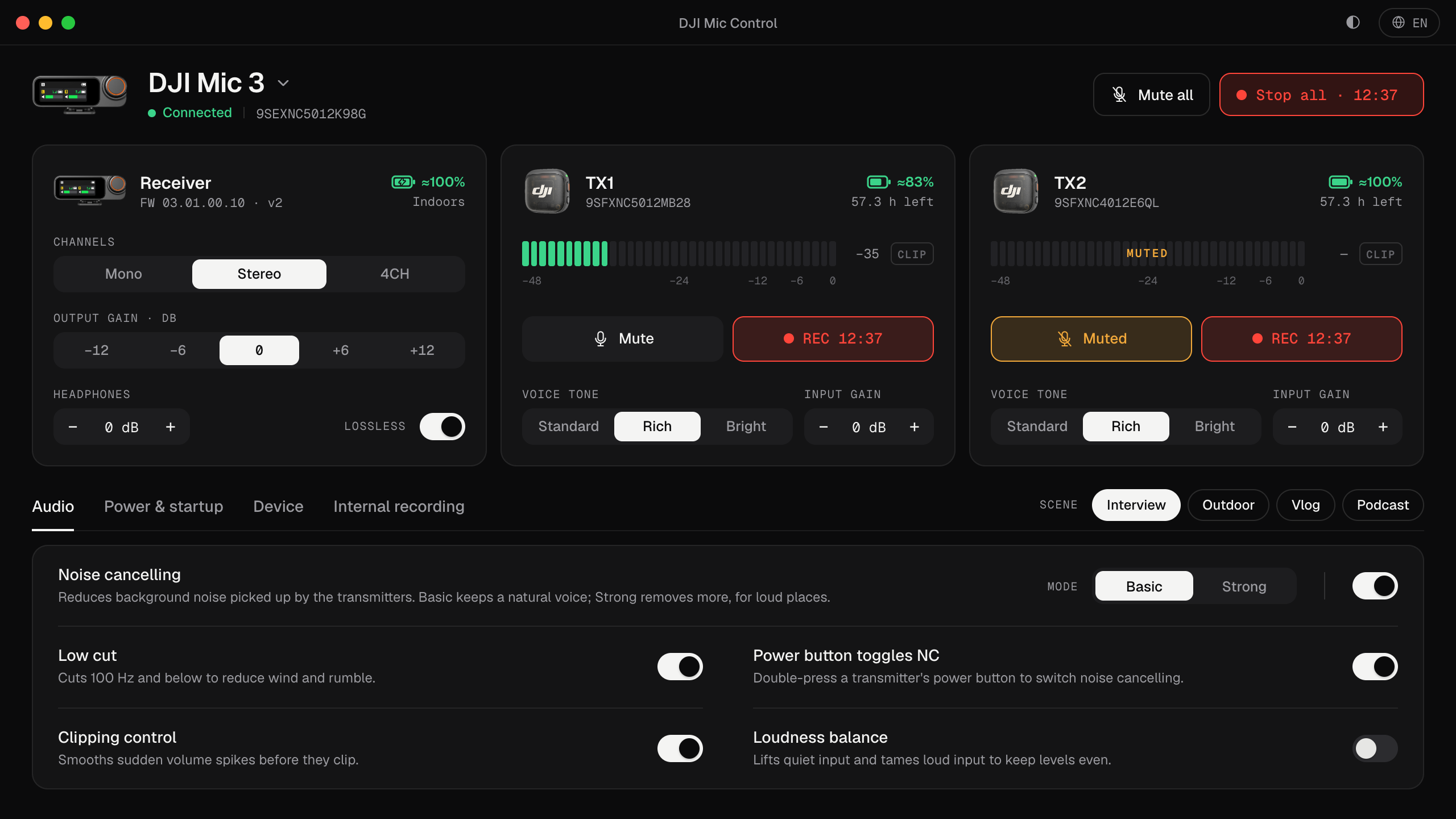
Which Mic Mini do you have?
The Mic Mini family mixes receivers and transmitters from different generations, and what Mic Control shows depends on both. The app identifies the receiver when it connects and each transmitter by the name it reports, and only shows the settings that combination supports.
| Receiver | What Mic Control does with it |
|---|---|
| DJI Mic Mini | Its settings over USB, with firmware v1 or v2 (more with v2, see below) |
| DJI Mic Series Mobile Receiver | Output gain and headphone level; noise cancelling is shown but set with the receiver’s own switch |
| DJI Mic Mini 2S | Uses the same protocol as the Mic 3: most of its settings, plus Safety Track, automatic recording modes and the choice of internal file (original or edited) |
| Transmitter | What you can control |
|---|---|
| Mic Mini | The basic settings |
| Mic Mini 2 | Voice tone, as well |
| Mic Mini 2S | The same as a Mic 3 transmitter: mute, internal recording, voice tone, input gain, 32-bit float… |
| Mic 2 (through the Mobile Receiver) | Mute, internal recording, 32-bit float, vibration, record on power-on, REC button |
Not tested in this version. The Mic Mini support comes from the original project, and the Mini 2S, Mobile Receiver and Mic 2 support from other open-source projects that did test it on hardware. Mic Control only sends commands those projects confirmed, and checks the receiver’s answer: if it rejects a setting, you see an error instead of a silent failure.
Settings you can change
With a Mic Mini receiver:
- Noise cancelling, on or off, and its level, Basic or Strong. More in noise cancelling: Basic or Strong.
- Low cut, to cut wind and rumble.
- Channels: Mono or Stereo (the Mic Mini has no 4CH).
- Safety Track: a backup copy 6 dB quieter on the second channel, so you still have a clean take if the main one clips. It needs the receiver in Mono; Mic Control tells you to switch Channels to Mono first.
- Clipping control on the receiver, which limits the output so loud sounds don’t distort.
- Auto power-off, follow camera power and the transmitters’ LEDs.
The receiver’s gain is set with its physical control. With firmware v2, Mic Control shows its position; you change it on the receiver.
Firmware v1 or v2?
Both work. With v1, some settings appear locked with a message asking you to update the firmware: noise cancelling on/off, the power-button shortcut for it, the transmitters’ auto power-off and the per-transmitter features. Firmware updates are done in DJI Mimo on your phone; Mic Control doesn’t touch the firmware.
Mobile Receiver
The DJI Mic Series Mobile Receiver is the small USB-C receiver made to plug into a phone. Plugged into a computer, it’s a USB microphone too, and Mic Control can change its output gain (−12 to +12 dB in 6 dB steps) and headphone level, which DJI otherwise has you change in DJI Mimo. Its noise cancelling is set with the switch on the receiver; Mic Control shows the state but can’t change it. Being powered by the USB port, it has no auto power-off or camera power sync.
Setting it up on each system
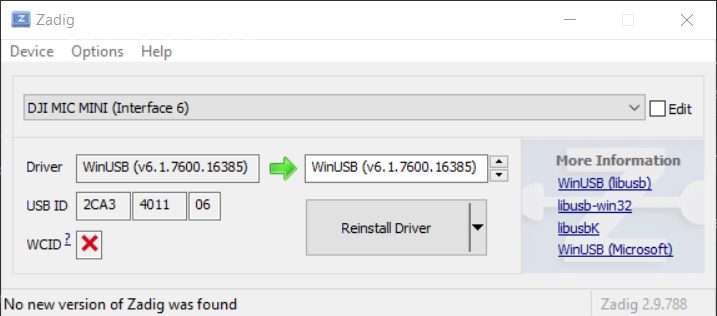
The installation is the same as for the Mic 3: see the Mac, Windows or Linux guide. The one difference is on Windows: in Zadig, pick interface 6 for the Mic Mini or Mobile Receiver, not interface 4. To record, choose the receiver as the microphone in your system and in your app, as explained in how to connect it to a computer.
What isn’t supported
- The DJI Mic 2’s own receiver and the original DJI Mic (2021): no USB control interface has been documented for them.
- Firmware updates, formatting the transmitters’ storage and timecode: for those, use DJI Mimo.
The short version
- 01
Install Mic Control
On Mac, download the .dmg. On Windows and Linux, follow the guide for your system.
- 02
Plug the receiver in over USB-C
Mic Control detects the model and shows only its settings.
- 03
Adjust and record
Noise cancelling, low cut, the gain dial and each transmitter's battery (firmware v2), all in view. With the Mic Mini 2, voice tone too.
What you'll be able to do
- Turn noise cancelling and low cut on or off.
- Switch between mono and stereo, or turn on Safety Track.
- See each transmitter's battery and, with firmware v2, the gain dial's position.
FAQ
How is it different from the Mic 3?
The Mic 3 has more settings: per-transmitter gain, mute and record from the app, 32-bit float or 4 channels. The app adapts the screen to your model.
Which interface do I pick in Zadig on Windows?
Interface 6, with the Mic Mini or Mic Mini 2 receiver.
Firmware v1 or v2?
Both work. On v1 some settings show as locked and the app tells you why.
What about the Mic Mini 2, Mini 2S and Mobile Receiver?
The Mic Mini 2 adds voice tone on each transmitter. With the DJI Mic Series Mobile Receiver you can also see and change the output gain and headphone level; noise cancelling shows in the app but is changed with the receiver's O/L/H switch. The Mic Mini 2S uses the Mic 3's protocol and adds Safety Track and the choice of internal file (original or edited). None of these has been tested in this version yet.