DJI Mic 2 on a computer: what works and what doesn't
The Mic 2 works fine as a USB microphone. Controlling its settings from a computer is another story. Here's what you can do, and the one combination that gets you there.
The short answer
- As a microphone: yes. DJI says you connect the DJI Mic 2 receiver to a computer through its USB-C port to use the transmitter as a microphone. It works like any USB mic.
- Its settings from the computer: no, not with the Mic 2’s own receiver. No USB control interface has been documented for it, so Mic Control (or any other desktop app we know of) can’t change its settings.
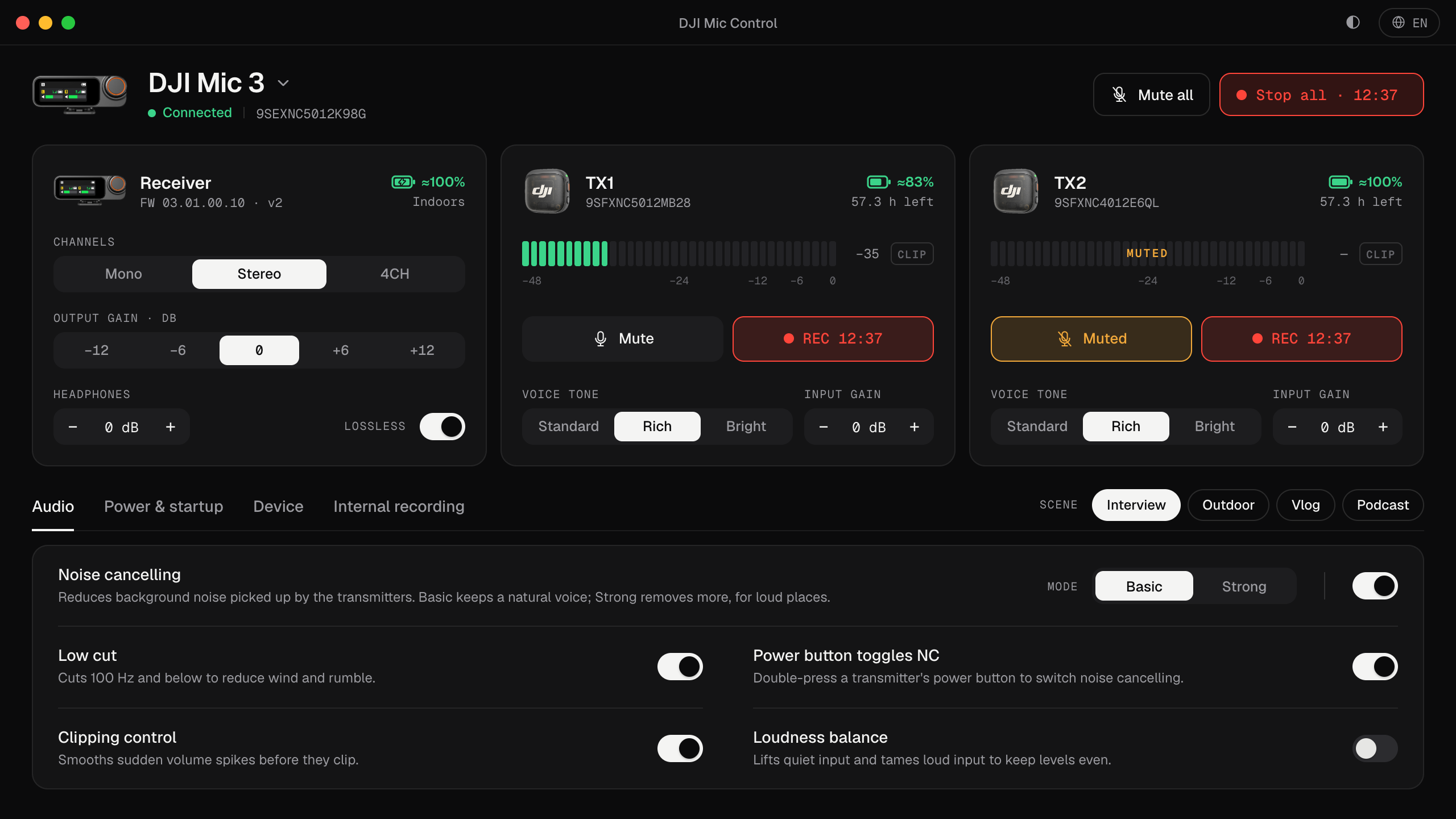
- Mic 2 transmitters with a different receiver: yes, with the DJI Mic Series Mobile Receiver, and then Mic Control can control part of them from the computer.
Using the Mic 2 as a USB microphone
- Connect the Mic 2 receiver to the computer with a USB-C cable that carries data.
- Choose it as the microphone in the system’s sound settings and inside your recording or call app.
- Set the level on the receiver, or in DJI Mimo.
The general steps, and what to check if it doesn’t appear, are the same as for the Mic 3: see how to connect a DJI Mic to a computer.
Why Mic Control can’t control the Mic 2 receiver
Newer DJI receivers expose a separate USB interface for their settings, next to the audio one. That’s what Mic Control talks to. For the Mic 2’s receiver, no such interface has been documented: the USB modes seen from it are audio and file transfer. Without a control interface there’s nothing for a desktop app to talk to, so Mic Control lists it as not supported rather than pretending.
Mic 2 transmitters on the Mobile Receiver
The DJI Mic Series Mobile Receiver accepts Mic 2 transmitters in its blue-light mode (a double press of the link button). According to DJI, Mic 2 transmitters don’t pair with the Mic 3 receiver or with the Mic Mini, Mini 2 or Mini 2S receivers.
With the Mobile Receiver plugged into a computer, Mic Control can control these Mic 2 transmitter features, confirmed on hardware by another open-source project:
- Mute
- Internal recording, start and stop, with the time left
- 32-bit float
- Vibration, record on power-on and the REC button
Voice tone and gain aren’t offered for the Mic 2: the transmitter acknowledges the commands, but nothing changes. This combination isn’t tested in this version of Mic Control. More on the Mobile Receiver in Mic Mini 2S and Mobile Receiver on a computer.
What the Mic 2 has that’s useful on a computer
- Safety Track: the receiver’s Ms mode records a backup 6 dB quieter on the right channel. See Safety Track.
- 32-bit float internal recording: 8 GB per transmitter, about 14 hours in 24-bit or 11 hours in 32-bit float, according to DJI.
- Firmware updates from a computer: unlike the Mic 3, DJI lets you update the Mic 2 by putting the firmware package (a
.binfile) in the root folder of the connected device.
Auto power-off
The Mic 2 receiver has a 30-minute auto power-off, and a firmware update added auto power-off for the transmitters, enabled by default. If yours switches off during a session, that’s the first thing to check. More in why the mic turns off by itself.
Should you upgrade?
If you record on a computer and want to control the mic from it, the DJI Mic 3 is the model Mic Control supports fully and has tested. If you already own Mic 2 transmitters, a Mobile Receiver lets you keep using them and control part of their settings from the computer.
Use it on your computer
- 01
Connect the Mic 2 receiver over USB-C
With a cable that carries data.
- 02
Pick it as the microphone
In the system's sound settings and in your app.
- 03
Set the level on the receiver
Or in DJI Mimo: its settings can't be changed from the computer.
What you'll be able to do
- With a Mobile Receiver: mute and record Mic 2 transmitters from the computer.
- Turn 32-bit float internal recording on or off.
- See the internal recording time left.
FAQ
Does Mic Control work with the DJI Mic 2?
Not with the Mic 2's own receiver: no USB control interface has been documented for it. Mic 2 transmitters work through the DJI Mic Series Mobile Receiver.
Can Mic 2 transmitters pair with the Mic 3 receiver?
No, according to DJI. They pair with the Mobile Receiver, in blue-light mode.
Can I update the Mic 2 from a computer?
Yes. DJI lets you put the firmware .bin file in the root folder of the connected device.
Does the Mic 2 have Safety Track?
Yes, in Ms mode: a backup 6 dB quieter. See Safety Track.