DJI Mic Mini 2S and Mobile Receiver on a computer
Both work as USB microphones on a computer. With Mic Control you also get their settings on screen: the Mini 2S almost like a Mic 3, the Mobile Receiver with the gain DJI keeps in Mimo.
The DJI Mic Mini 2S in brief
DJI’s smallest kit with internal recording, launched globally in August 2026. According to DJI:
- Internal recording in each transmitter: about 14.5 GB, roughly 28 hours in 24-bit or 22 hours in 32-bit float (32-bit float is off by default).
- One internal file per recording: either the original or the edited version (with noise cancelling, low cut and voice tone applied). The default is the edited file. The DJI Mic 3, by contrast, can record both at once.
- Safety Track in Mono mode: a backup copy at −6 dB.
- The receiver takes up to four transmitters: Mini 2S, Mini 2 or Mini.
- Transmitters can also connect directly to a phone by Bluetooth, for third-party apps.
On a computer
Plug the Mini 2S receiver into the computer over USB-C and DJI says the transmitter can then be used as an external microphone: like the Mic 3, it’s an ordinary USB microphone, with no driver needed. Pick it as the input in your system and in your app, as explained in how to connect it to a computer.
Controlling it with Mic Control
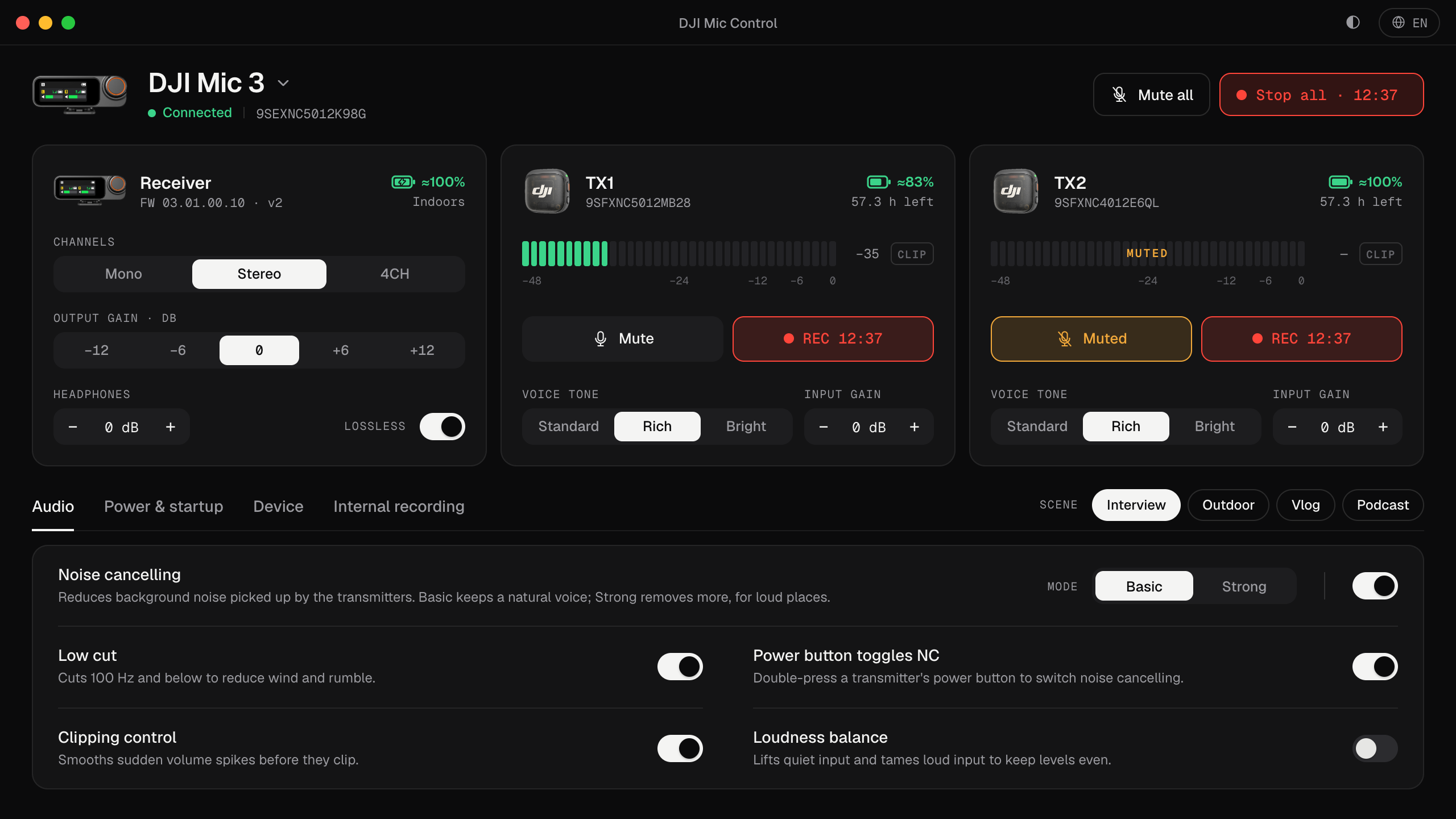
The Mini 2S receiver uses the same USB protocol as the Mic 3, so Mic Control can do most of what it does for the Mic 3:
- Live levels for each transmitter, mute and internal recording, input gain, voice tone, 32-bit float and loop recording.
- Noise cancelling, low cut, channel mode and the scenes.
- On top of that, the Mini 2S’s own settings: Safety Track, automatic recording (on power-on, or whenever a transmitter links to the receiver) and the internal file option.
What it doesn’t have, because the Mini 2S receiver doesn’t: lossless audio and the receiver’s output and headphone gain.
Not tested in this version. The Mini 2S support comes from other open-source projects that tested it on real hardware. Mic Control only sends commands they confirmed and checks the receiver’s answer: if it rejects a setting, you see an error.
Windows: in Zadig, the Mini 2S receiver uses interface 4, like the Mic 3. See the Windows guide.
The DJI Mic Series Mobile Receiver
The Mobile Receiver is a 6.5 g receiver that plugs straight into a phone’s USB-C port and is powered by it. According to DJI:
- It takes up to two transmitters. In green-light mode it works with the Mic Mini, Mini 2 and Mini 2S; in blue-light mode (a double press of the link button) with the DJI Mic 2 and Mic 3 transmitters, or mixes with Mini models.
- Noise cancelling is a physical switch: O (off), L (low) and H (high).
- Gain has no physical control: DJI has you change it in DJI Mimo.
- Channel modes: Mono, Stereo and Ms (mono with Safety Track).
- It also works on computers with a USB-C port.
With Mic Control on a computer, you can change the Mobile Receiver’s output gain (−12 to +12 dB, in 6 dB steps) and headphone level without the phone, and see the noise switch’s position. Changing noise cancelling itself still means moving the switch. Being bus-powered, it has no auto power-off or camera power sync. Not tested in this version either; on Windows it uses interface 6 in Zadig.
Transmitters on these receivers
Mic Control shows the controls each transmitter supports, by the name it reports:
| Transmitter | What you can control |
|---|---|
| Mic Mini 2S, Mic 3 | Mute, internal recording, voice tone, input gain, 32-bit float, loop recording |
| Mic 2 (Mobile Receiver only) | Mute, internal recording, 32-bit float, vibration, record on power-on, REC button |
| Mic Mini 2 | Voice tone |
| Mic Mini | The basic settings |
Firmware
Firmware updates are done in DJI Mimo on a phone: the receiver connects through its adapter or by Bluetooth, and then updates the transmitters from the charging case; transmitters can also update over Bluetooth. Mic Control doesn’t touch the firmware. More in updating the firmware.
For the original Mic Mini and the Mini 2, see DJI Mic Mini on your computer.
Set it up in three steps
- 01
Install Mic Control
On Mac, the .dmg. On Windows or Linux, follow the guide for your system.
- 02
Plug the receiver in over USB-C
Mic Control identifies the model and shows only its settings.
- 03
Pick it as the input
In your system and in your recording app, as with any USB mic.
What you'll be able to do
- See each transmitter's level, battery and recording time.
- Change gain, noise cancelling, Safety Track and recording options.
- Control Mic 2 and Mic 3 transmitters through the Mobile Receiver.
FAQ
Is the Mini 2S supported?
Yes, from other open-source projects that tested it on hardware; it uses the same protocol as the Mic 3. It hasn't been tested in this version yet.
Which interface do I pick in Zadig on Windows?
Interface 4 for the Mini 2S receiver, interface 6 for the Mobile Receiver.
Can I change the Mobile Receiver's noise cancelling from the computer?
No. It's set with the O/L/H switch on the receiver; Mic Control shows its position.
Does the Mini 2S record two files like the Mic 3?
No. According to DJI it records one internal file, the original or the edited version (edited by default).