DJI Mic 3 too quiet on your computer: how to set the gain
There isn't one volume knob but four, and they live in different places. Set them in this order and you'll get a strong signal without clipping.
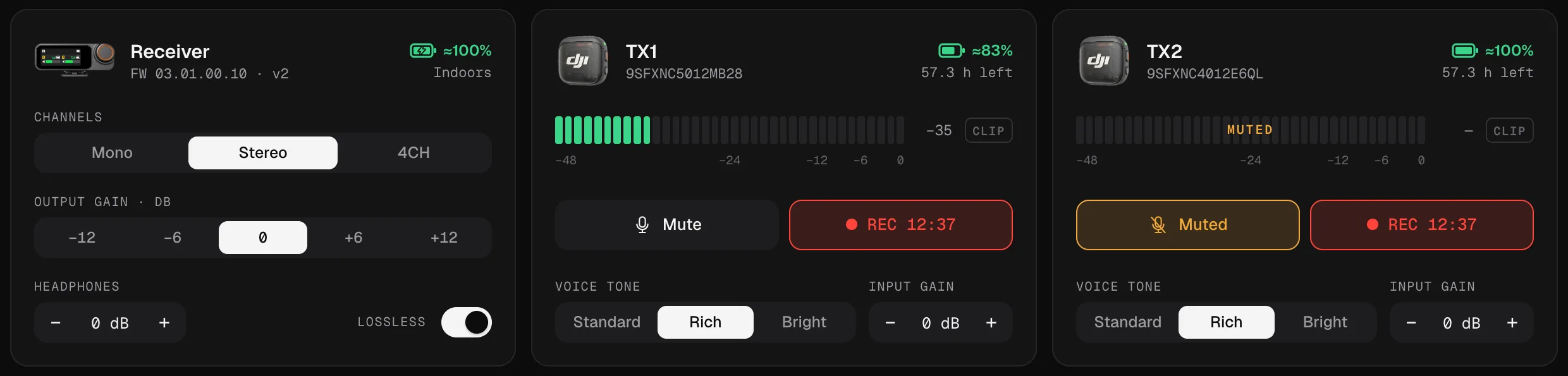
Four volume controls, in the order the sound passes through them
| Control | Where | Range | What it affects |
|---|---|---|---|
| Input gain | Each transmitter | −12 to +12 dB, in 1 dB steps | How much each mic is amplified. One person quiet or loud: fix it here. |
| Output gain | Receiver | −12, −6, 0, +6, +12 dB | The level the receiver sends to the computer or camera, for every transmitter at once. |
| Input volume | The computer | System slider | What the operating system does with the signal it receives. |
| Headphones | Receiver | −12 to +12 dB | Only what you hear in headphones. It doesn’t change the recording. |
Many apps add a fifth, their own automatic microphone adjustment. More on that below.
How to read the meter
In Mic Control, each transmitter has a meter from −48 to 0 dB:
- Green, below −12 dB: comfortable.
- Orange, from −12 to −6 dB: loud. Fine for peaks.
- Red, above −6 dB: too close to the limit. If the signal hits the maximum, CLIP lights up and stays on for a moment so you don’t miss it.
For speech, aim for normal talking in the green and the loudest moments reaching the orange. The dB values are approximate: use the meter as a guide, not a lab instrument.
Too quiet: check in this order
- Is the computer using the receiver? If you’re recording with the laptop’s microphone, no gain setting will help. Pick “Wireless Microphone RX” in the system and in your app: see how to connect it.
- The computer’s input volume. On a Mac: System Settings → Sound → Input. On Windows: Settings → System → Sound → your input device. Make sure it isn’t low.
- The receiver’s output gain. Raise it to +6 dB and talk again.
- The input gain of the quiet transmitter. Raise it a few dB at a time, watching the meter. This is the one to use when only one person sounds quiet.
- Where the mic is. A transmitter on the chest, a hand’s width below the chin and pointing at the mouth, picks up far more voice than one on a collar off to the side.
- The app’s automatic adjustment. Zoom and other call apps can turn the microphone down on their own. If the level drifts, turn that option off in the app’s audio settings.
Too loud or distorted: the other way round
If everything distorts, lower the receiver’s output gain first. If it’s only one person, lower that transmitter’s input gain. There’s a complete guide in how to stop the DJI Mic 3 clipping.
Adaptive gain control: Automatic and Dynamic
The Mic 3 can manage the gain by itself, in two modes. DJI calls them:
- Automatic (clipping prevention): smooths sudden swings in volume and suppresses spikes. For loud, unpredictable places.
- Dynamic (volume balancing): raises quiet input and lowers loud input. For quiet indoor places such as a studio.
In Mic Control they’re Clipping control (Automatic) and Loudness balance (Dynamic). DJI notes that while adaptive gain control is enabled, the gain can’t be adjusted on the receiver. If you want to set the gain by hand, turn both off first.
Mic Mini, Mic Mini 2 and Mobile Receiver
- Mic Mini: the receiver’s gain is set with a physical control. With firmware v2, Mic Control shows its position (“Gain ±X dB”), but you change it on the receiver.
- DJI Mic Series Mobile Receiver: DJI has you change its gain in DJI Mimo. Mic Control can change it from the computer (−12 to +12 dB in 6 dB steps), along with the headphone level. That support comes from other open-source projects tested on hardware; it hasn’t been tested in this version.
A backup for when you get it wrong
The gain is set before you record. If a laugh or a shout clips anyway, a computer recording can’t be repaired. On the Mic 3, the transmitters can also record internally in 32-bit float, which keeps enough headroom to bring the level down in the edit.
Set the gain with Mic Control
- 01
Talk like in the real take
Watch each transmitter's meter. Normal speech in the green, peaks reaching the orange, never the red.
- 02
Adjust each transmitter's input gain
From −12 to +12 dB in 1 dB steps. Quiet voice: raise it. Loud voice or CLIP: lower it.
- 03
Then the receiver's output gain
−12, −6, 0, +6 or +12 dB, for every transmitter at once. If everything is quiet, raise it; if everything distorts, lower it first.
What you'll be able to do
- See each transmitter's level live, with a clip warning.
- Change input gain per transmitter and the receiver's output gain.
- Turn clipping control and loudness balance on or off.
FAQ
Why can't I change the gain?
Adaptive gain control is probably on. DJI says that while it's enabled, gain can't be adjusted on the receiver. Turn off clipping control and loudness balance, then set it by hand.
Does the headphone volume change the recording?
No. It only changes what you hear in headphones plugged into the receiver.
My Mic Mini sounds quiet. Where's its gain?
The Mic Mini receiver sets its gain with a physical control. With firmware v2, Mic Control shows its position, but you change it on the receiver.
DJI says the Mobile Receiver's gain is set in Mimo. Is there another way?
Mic Control can change the Mobile Receiver's gain (−12 to +12 dB in 6 dB steps) and headphone level from the computer. That support comes from other projects tested on hardware; it hasn't been tested in this version.
Is louder always better?
No. A peak in the red is clipping, and clipped audio can't be repaired. Leave some headroom, and if in doubt, record a 32-bit float backup inside the transmitters.